Tech Fundamentals
by Brendon Thiede
Student Goals
- Understand the basics of how computers work
- Differentiate between hardware and software
- Understand how computers use files
- Start experimenting with the command line
Icebreaker
What's one thing you used a computer for this week?
No wrong answers - curiosity beats correctness!
What is a Computer?
Hardware
The physical parts you can touch
- Keyboard & Mouse
- Screen / Monitor
- CPU (the "brain")
- Memory (RAM)
- Storage (hard drive / SSD)
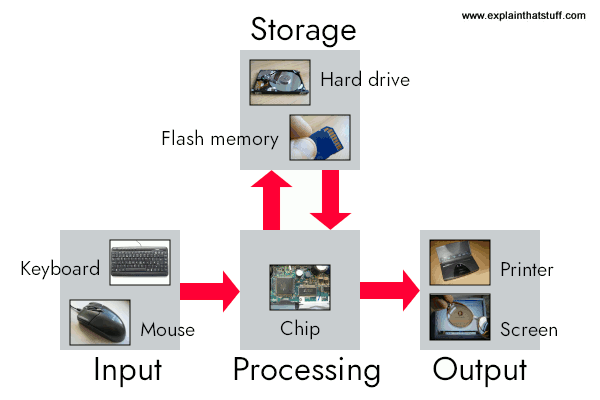
Software
The instructions that tell hardware what to do
- Operating System (Windows, Mac, Linux)
- Apps & Programs
- Games
- Websites
Activity: Hardware or Software?
- Webcam
- Chrome Browser
- Headphones
- Minecraft
- USB Drive
- YouTube
Files, Folders, and Extensions
How computers organize stuff
What is a File?
- A container for information
- Has a name and an extension
- Example:
notes.txt
Remember: Files don't do anything until a program reads them!
File Extensions
The part after the dot tells the computer what kind of file it is
.txt- Plain text.jpg/.png- Images.mp3- Audio.mp4- Video.html- Web page
Folders (Directories)
Containers that hold files and other folders
Like folders in a filing cabinet!
Activity: Create Your First Folder
- Create a folder called
Tech-Workshop-1 - Inside it, create
notes.txt - Create another file called
about-me.txt
Text Editors vs Word Processors
Plain Text
- Just the characters - nothing else
- What you see is what's stored
- Used for code, config files, notes
- Examples: Notepad, VS Code, nano
Rich Text (Word Processors)
- Text + hidden formatting codes
- Bold, fonts, colors, images
- Great for documents, NOT for code
- Examples: Microsoft Word, Google Docs
Why Does This Matter?
Code needs to be exactly what you type
Hidden formatting breaks code!
Always use a text editor for programming
🎉 Break Time! 🎉
Stretch, move around, grab some water
Back in 10 minutes!
Would you rather...
- Have unlimited battery, or unlimited storage?
- Always win your favorite video game, or find new games all the time?
- Have a program that works, but you can't understand it, or a program you understand, but doesn't work?
What is Code?
Computers Are Literal
They do exactly what you tell them
No more, no less
They can't guess what you meant!
Code = Precise Instructions
Like a recipe, but even more specific
- Step by step
- In order
- No assumptions
Activity: Human Computer
- Programmer
- Computer
- Observer
Draw a house
Errors Are Normal!
- Every programmer makes mistakes
- Errors help us learn
- Practice specificity
The Terminal
Talking directly to your computer
What is a Terminal?
- A text-based way to control your computer
- Type commands, get results
- Very powerful!
- Promotes repeatability
Your First Commands
pwd
"Print Working Directory" - Where am I?
Your First Commands
ls
"List" - What's in this folder?
Your First Commands
echo 'Hello, computer!'
Print a message back to you!
Activity: Try It!
- Open a terminal
- Type
pwdand press Enter - Type
lsand press Enter - Type
echo 'Hello!'and press Enter
What did you see?
Wrap-Up
What We Learned
- Hardware vs Software
- Files, Folders, and Extensions
- Plain Text vs Rich Text
- Code = Precise Instructions
- Basic Terminal Commands
Reflection
One thing I learned...
One thing I'm curious about...
Opportunities to go Deeper
Coming Up Next
You'll tell the computer what to do...
with JavaScript!

https://lansingtechstudio.org/workshops/SETUP
Thank you!